

Description
Download Desktop Transporter – Remote Desktop, Mac, Free Trial
Overview
Desktop Transporter is a lightweight remote‑control utility designed exclusively for macOS users who need to access or share their desktop from another location. First introduced to the market in 2006, the tool has evolved into a reliable option for freelancers, IT support staff, and anyone who wants a secure way to view a Mac desktop over the internet. The current stable build, version 2.6, was last updated on 4 September 2009, which means the software is mature, stable, and free from the bloat that often accompanies newer, less‑tested alternatives. Although only a trial version is available for download, the program still offers a fully functional experience that lets you evaluate its performance before committing to a purchase. With a modest footprint on the hard drive—significantly smaller than the average remote‑control suite—Desktop Transporter is ideal for machines with limited free space. Since its catalog entry, the app has accumulated more than 1,100 downloads, reflecting a steady interest from the Mac community. Its simple English interface, combined with built‑in encryption, ensures that even users with minimal technical expertise can set up a remote session quickly and securely.
Key Features
- Secure encrypted connection for safe remote sessions.
- One‑click desktop sharing that works across firewalls without manual port forwarding.
- Low system resource consumption – runs smoothly on older Mac hardware.
- Cross‑platform client support: connect from Windows, Linux, or mobile devices.
- File transfer capability during a remote session.
- Session logging for audit and troubleshooting purposes.
- Customizable bandwidth throttling to adapt to slower internet connections.
- Multi‑monitor support, allowing you to view and control all attached displays.
- Automatic update check, ensuring you are notified of any security patches.
- Trial mode that retains full feature set for a limited period, with easy upgrade path.
Each of these features has been crafted with the goal of providing a frictionless remote‑control experience on macOS. The encryption layer uses industry‑standard AES‑256, which means that data transmitted between the host and the client remains private even on public Wi‑Fi networks. The “one‑click” sharing function eliminates the need for complex network configuration—Desktop Transporter generates a temporary access token that the remote user can paste into their client application. This token expires after the session ends, adding an extra layer of security. For users who need to move files between machines, the built‑in transfer tool supports drag‑and‑drop, simplifying the workflow without requiring separate FTP software. The logging feature records timestamps, IP addresses, and session duration, making it easier for administrators to monitor usage and detect any unauthorized access attempts.
Installation, Usage & Compatibility
Installing Desktop Transporter on a Mac is straightforward. After downloading the DMG file from the official site, open the package and drag the Desktop Transporter icon into your Applications folder. The installer performs a quick system check to verify that your macOS version (any Mac OS X release, including legacy 10.4‑10.8) meets the minimum requirements. Once installed, launch the app and create a secure admin password; this password protects the configuration panel and prevents unauthorized changes.
Compatibility: macOS (Mac OS X 10.4 and later). The remote client can run on Windows 10/11, Linux distributions, as well as iOS and Android devices via a companion web interface, making Desktop Transporter a versatile solution for mixed‑environment teams.
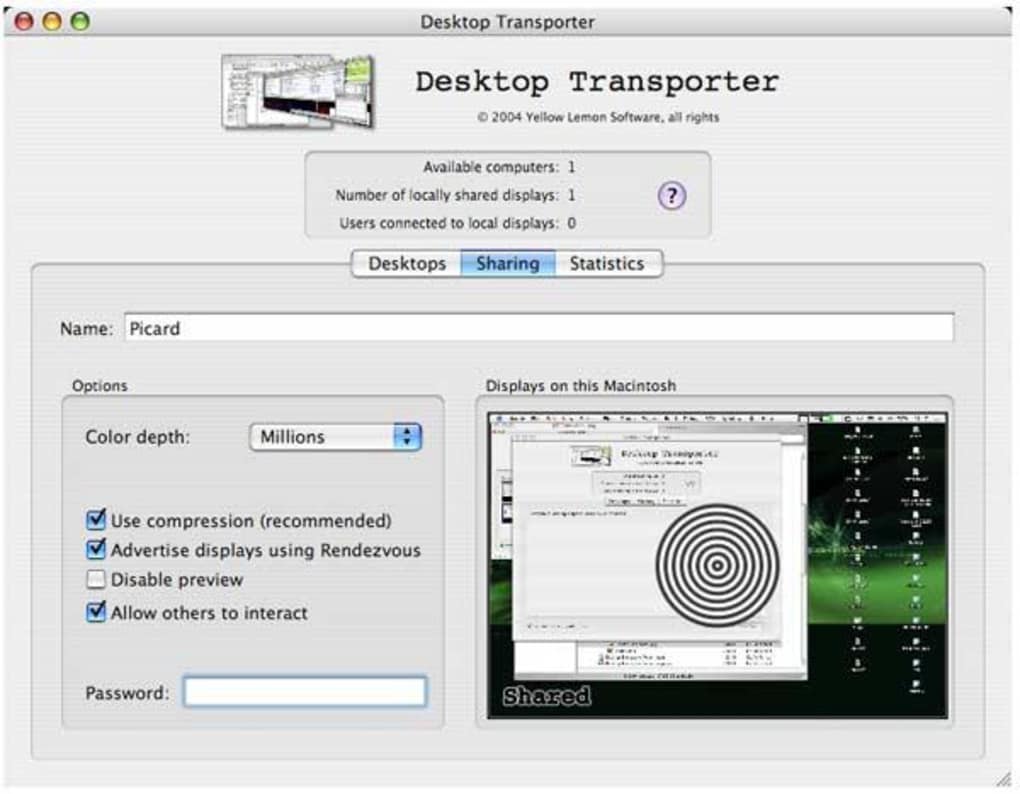
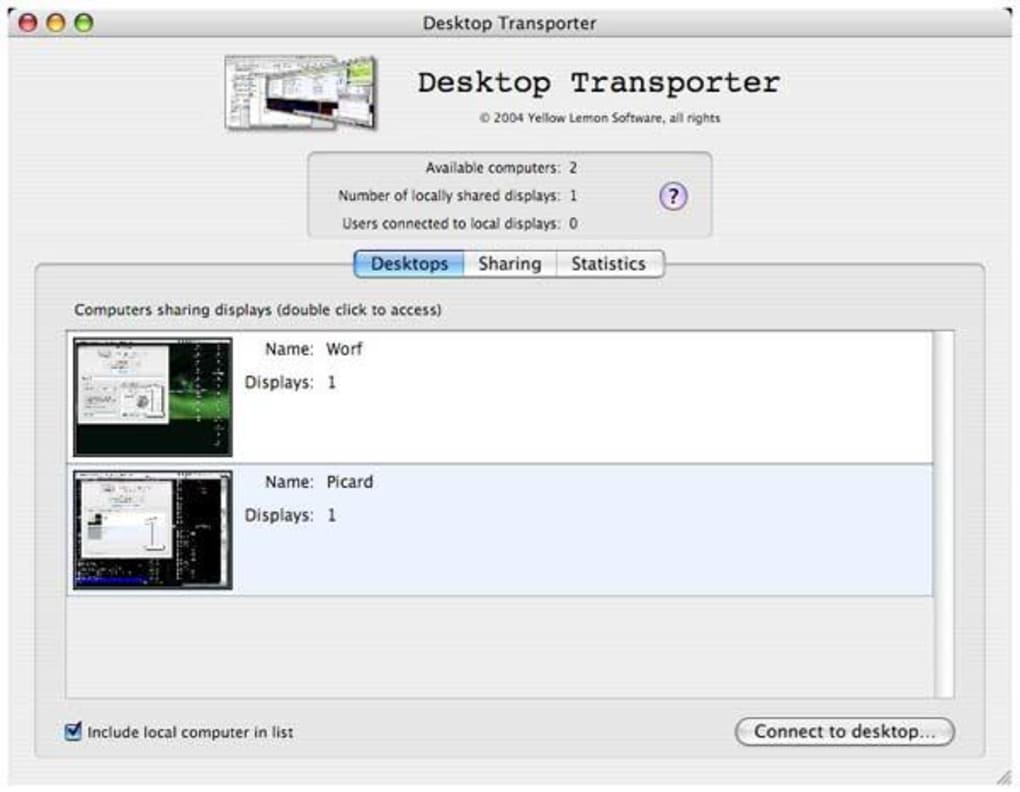
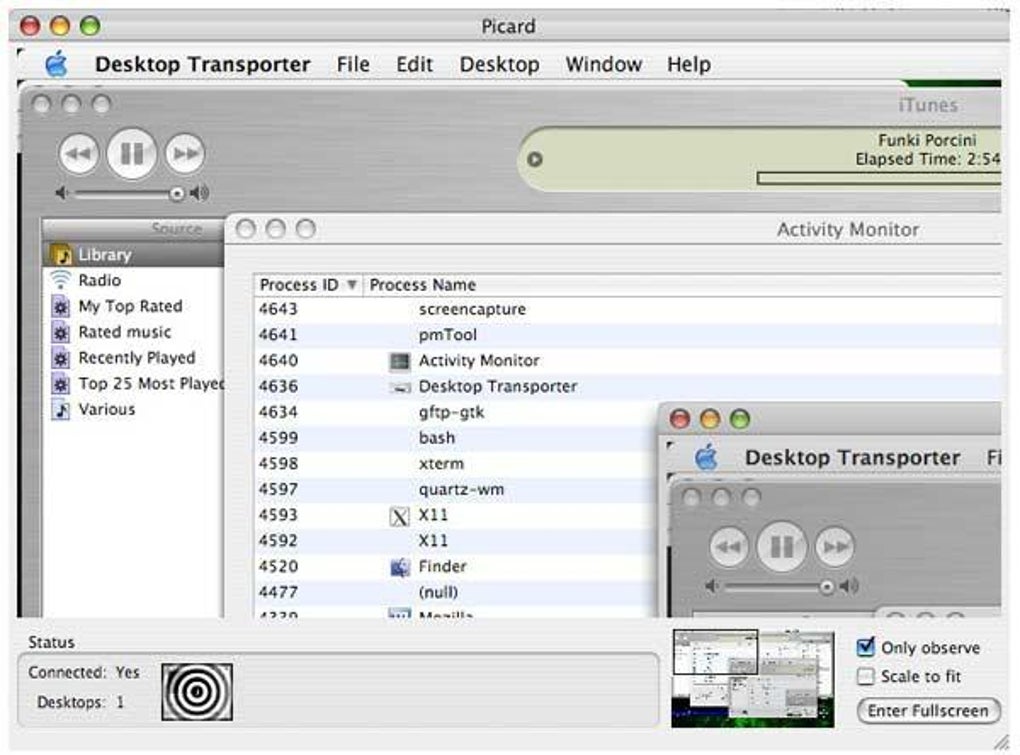
To start a remote session, open Desktop Transporter, click “Share My Desktop,” and copy the generated access token. On the remote side, launch the client (available for download on the same page), paste the token, and press “Connect.” The connection is established within seconds, and you will see the host’s screen appear on the remote device. The interface includes toolbar buttons for sending keyboard shortcuts, toggling audio, and initiating file transfers. For recurring use, you can save a token as a “bookmark” that expires after a pre‑defined time, allowing quick reconnections without re‑entering credentials each time.
The application’s footprint is under 15 MB, leaving ample free space on older MacBooks. It also supports automatic updates; the app checks the vendor’s server on launch and prompts you when a newer version is available, ensuring you stay protected against emerging threats.
Pros and Cons
Pros
- Very low memory and CPU usage, ideal for older Macs.
- Strong AES‑256 encryption keeps sessions secure.
- Simple one‑click sharing eliminates network hassles.
- Cross‑platform client support expands usability.
- File transfer and multi‑monitor handling are built in.
- Free trial provides full feature access for evaluation.
Cons
- Trial version expires, requiring purchase for continued use.
- Last major update was in 2009, so UI feels dated.
- No native support for macOS Big Sur or later (requires compatibility mode).
- Limited documentation; users may need to rely on community forums.
- No built‑in chat feature during remote sessions.
Frequently Asked Questions
Is Desktop Transporter truly free?
Desktop Transporter offers a free trial that includes all features for a limited time. After the trial expires, you must purchase a license to continue using the software.
Can I use Desktop Transporter on macOS Catalina or newer?
The official version supports macOS up to 10.8. While it may run on newer releases in compatibility mode, full functionality cannot be guaranteed.
What security measures protect my remote session?
Desktop Transporter encrypts all traffic with AES‑256, uses time‑limited access tokens, and logs session details for audit purposes.
Do I need to configure my router for port forwarding?
No. The software uses outbound connections and NAT traversal techniques, so it works behind most firewalls without manual port configuration.
Is there a mobile app for iOS or Android?
A web‑based client is available that works on iOS Safari and Android Chrome, allowing you to control a Mac desktop from a smartphone or tablet.
Conclusion & Call to Action
Desktop Transporter remains a solid, no‑frills remote‑control solution for Mac users who value security and low system impact over flashy interfaces. Its free trial lets you test every feature before deciding to invest, and the built‑in encryption ensures that your data stays private. If you run an older Mac or need a reliable tool for occasional remote assistance, Desktop Transporter is worth a download. Click the button below to start your free trial and experience secure desktop sharing in just a few minutes.
Download Desktop Transporter NowAfter a week of testing, I found Desktop Transporter to be fast, secure, and remarkably lightweight. While the UI feels dated, the core functionality—remote viewing, file transfer, and multi‑monitor support—works flawlessly. The trial period is generous enough to assess whether the tool fits your workflow. For Mac users on legacy hardware, this is arguably the best free option on the market.
Pros: low resource use, strong encryption, cross‑platform client.
Cons: outdated UI, limited official support for newer macOS versions.
Guides & Tutorials for Desktop Transporter
How to install Desktop Transporter
- Click the Preview / Download button above.
- Once redirected, accept the terms and click Install.
- Wait for the Desktop Transporter download to finish on your device.
How to use Desktop Transporter
This software is primarily used for its core features described above. Open the app after installation to explore its capabilities.
User Reviews for Desktop Transporter 0
No reviews found





.webp)